
- Home
- EA Reviews
- How to Install Expert Advisors


✨Introduction
If you’ve ever wondered how to install an Expert Advisor (EA), apply preset (.set) files, or add indicators in MetaTrader 4 (MT4), this guide is for you. Many new traders struggle with basic setup issues — like EAs not loading, indicators not showing, or errors popping up during activation.
In this article, you’ll learn:
✅ How to properly install Expert Advisors and indicators in MT4
✅ How to load preset (.set) files with optimized settings
✅ How to detect and fix common EA errors quickly
By the end, you’ll have a clear understanding of how to set up everything correctly, troubleshoot issues confidently, and make your MT4 platform run your trading automation smoothly — just like a pro.ers.
🖥 Step 1: Launch MetaTrader 4 (MT4)
Start by opening your MetaTrader platform. Make sure you’re logged in to your trading account and that your internet connection is stable. A properly functioning platform ensures your Expert Advisors installation goes smoothly.
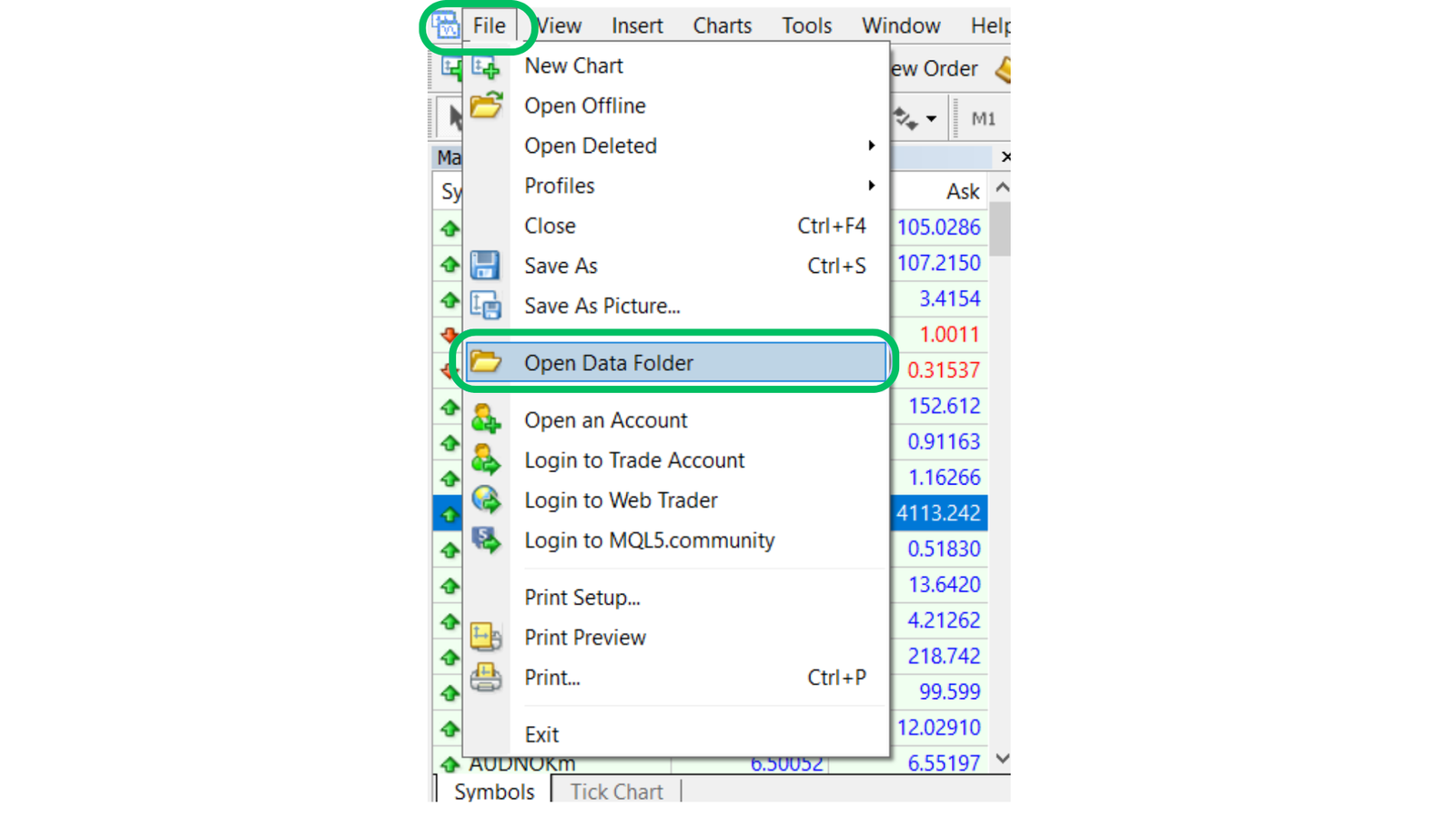
At the top-left corner of your MetaTrader platform, click
File → Open Data Folder.
🗂️ Step 2: Go to the “MQL4” Folder
Once you’ve opened the Data Folder in MetaTrader 4, you’ll see a list of system folders similar to the image below.
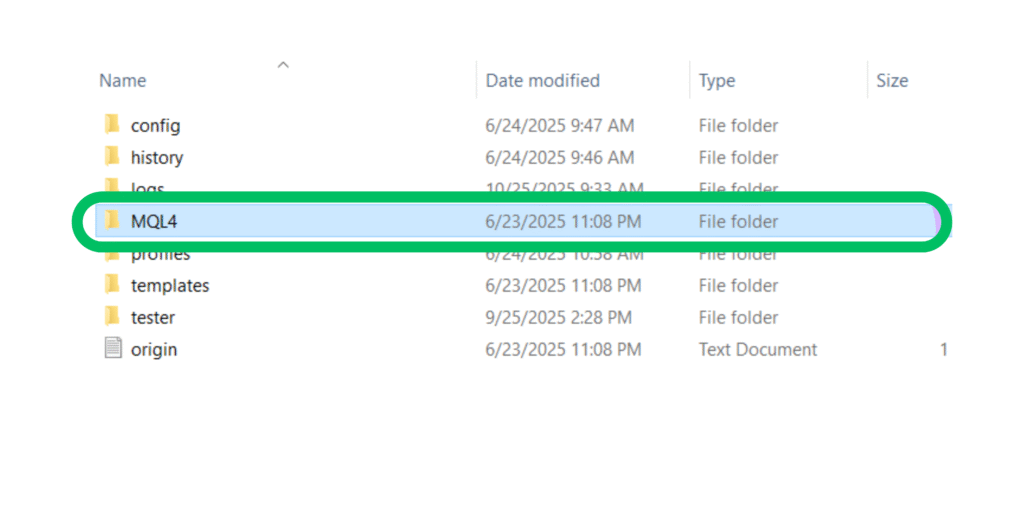
Among these, locate and double-click the “MQL4” folder — this is where all your MetaTrader components are stored
⚙️Step 3: Place EA File in Experts Folder
After you’ve opened the MQL4 folder in your MetaTrader 4 data directory, you’ll see several subfolders — as shown in the image below.
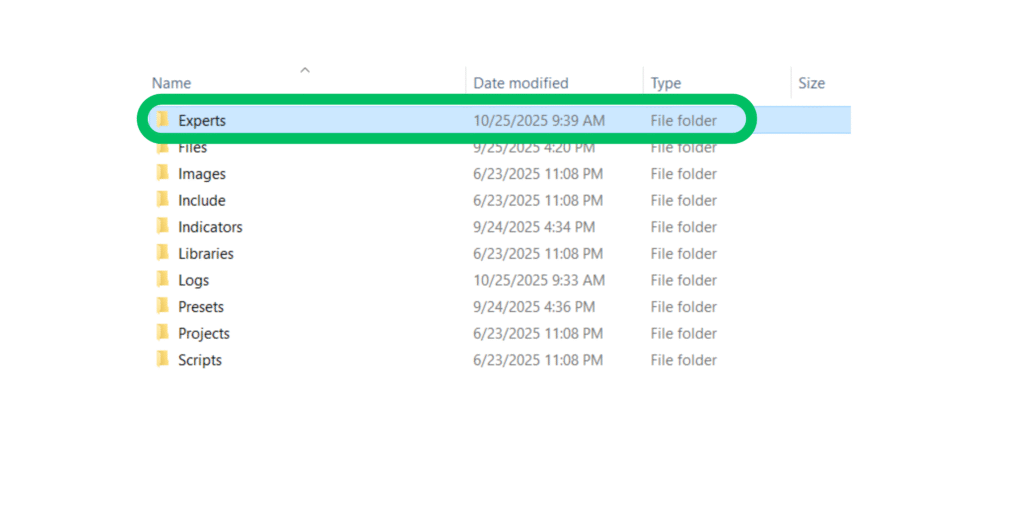
Among them, locate the folder named “Experts”. This is where all your Expert Advisors (EAs) or trading robots must be placed.
📂 What Goes Inside the Experts Folder?
Every EA you want to use in MT4 needs to be copied into this folder. The file format should be either
.ex4→ Compiled EA file for MT4.mq4→ Source code file (which MT4 will compile automatically when restarted)
For example
👉 MyTradingBot.ex4
👉 ScalperEA.mq4
⚙️ Step 4: Copy and Paste Your (EA)
Now that you’ve opened the Experts folder, it’s time to add your actual Expert Advisor (EA) file.As shown in the image below, this is where your .ex4 (for MT4).
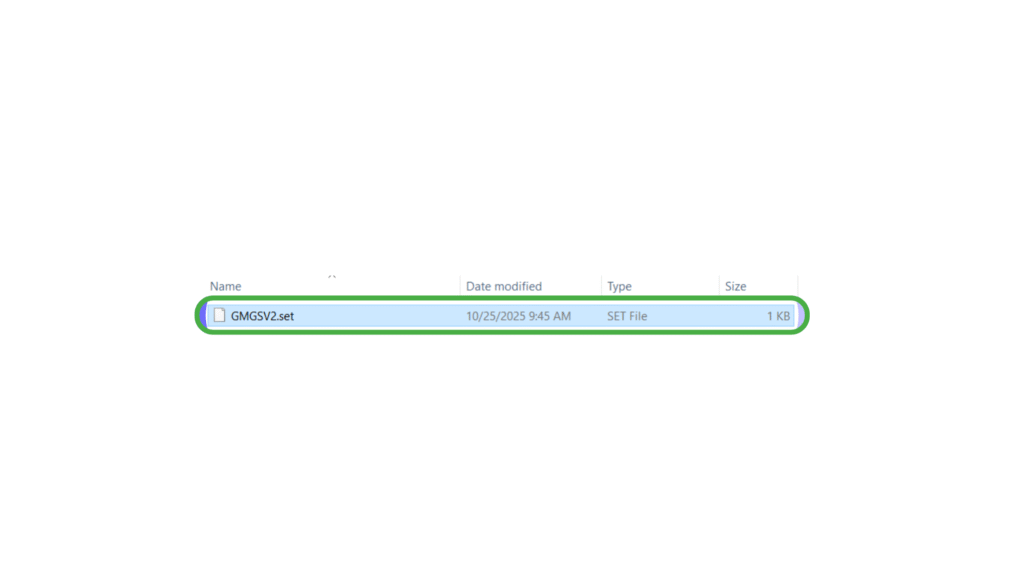
In this example, the file “GMGS PRO V2.ex4” is the Expert Advisor. Simply copy and paste your EA file into this folder.
⚙️ Step 5: How to Load and Use Preset (.set) Files in MT4
In some cases, the Expert Advisor (EA) you install may not include any indicator or set file, and that’s completely normal. Not all EAs need them to function.
💾 Note: “Set” and “Preset” Files Are the Same
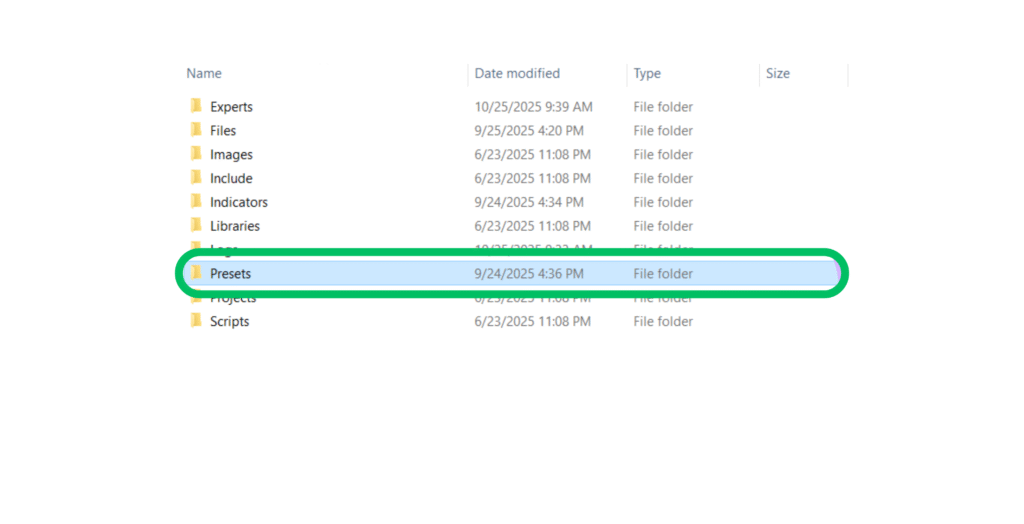
If you don’t see an indicator (.ex4 / .mq4) or set file (.set) in your EA’s folder, simply skip their installation and move straight to Step 6.Many EAs work perfectly using their own built-in logic without relying on external files. After placing your EA in the Experts folder, you might also see another folder named “Presets”
To load a preset file in MT4, simply double-click on the .set file to open it automatically in your EA settings, or drag and drop it into the Inputs tab of your EA setup window. Once loaded, click OK, and your EA will instantly apply those predefined settings — as shown below.
📊 How to Use Indicators in MetaTrader 4 (MT4)
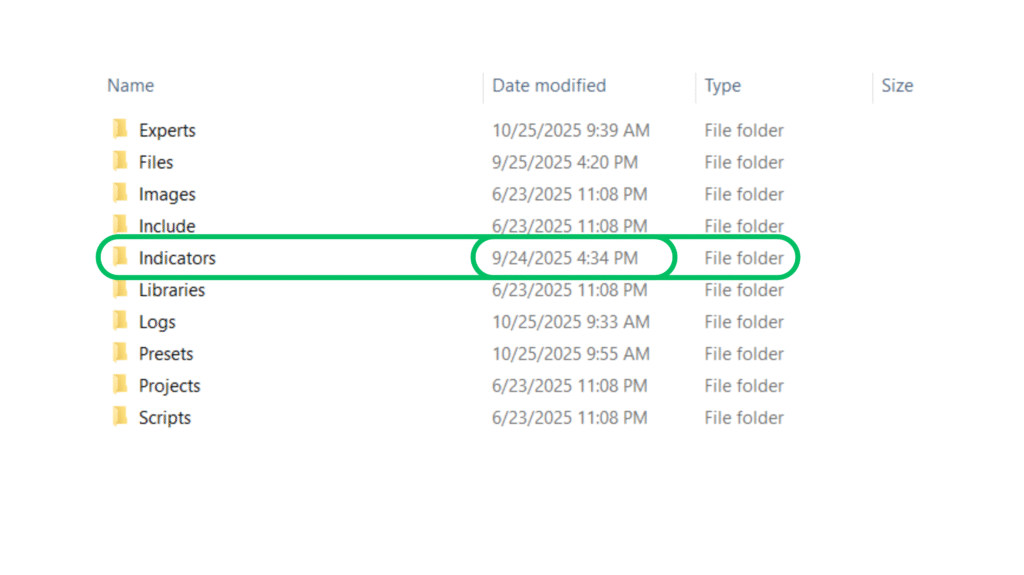
In MT4, you’ll find an “Indicators” folder (shown below). This is where all your built-in and custom indicators are stored. Indicators — Created by developers to add unique trading tools (files ending in .ex4
⚙️ To Add a New Indicator
To load a Indicator file in MT4, simply double-click on the .set file to open it automatically in your EA settings, or drag and drop it into the Inputs tab of your EA setup window. Once loaded, click OK, and your EA will instantly apply those predefined settings
🔄 Step 6: How to Make Your EA Appear in MetaTrader
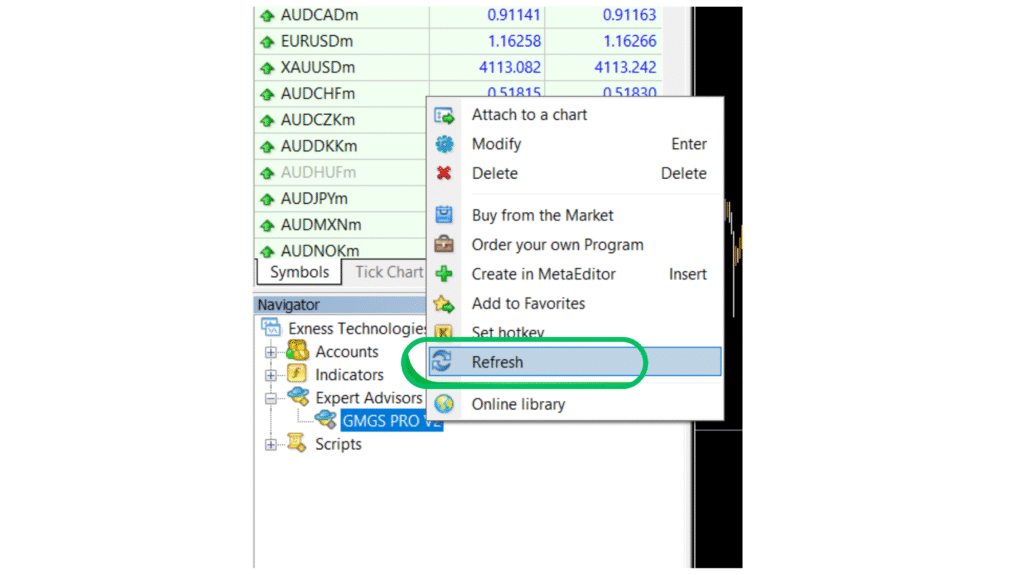
Once you’ve copied your Expert Advisors file (for example, GMGS PRO V2.ex4) into the Experts folder, you need to make MetaTrader recognize it. The simplest way to do this is by refreshing your Expert Advisors list inside the platform — no restart needed!
Follow these steps
- Go to the Navigator Panel on the left side of your MetaTrader 4 platform.Found on the left side of the MT4 platform.
- It’s like your “control center” — Go to the Navigator Panel on the left side of MT4.
- If it’s not visible, you can enable it by pressing Ctrl + N or going to View → Navigator.
- Find the “Expert Advisors” section (you may need to click the “+” sign to expand it).
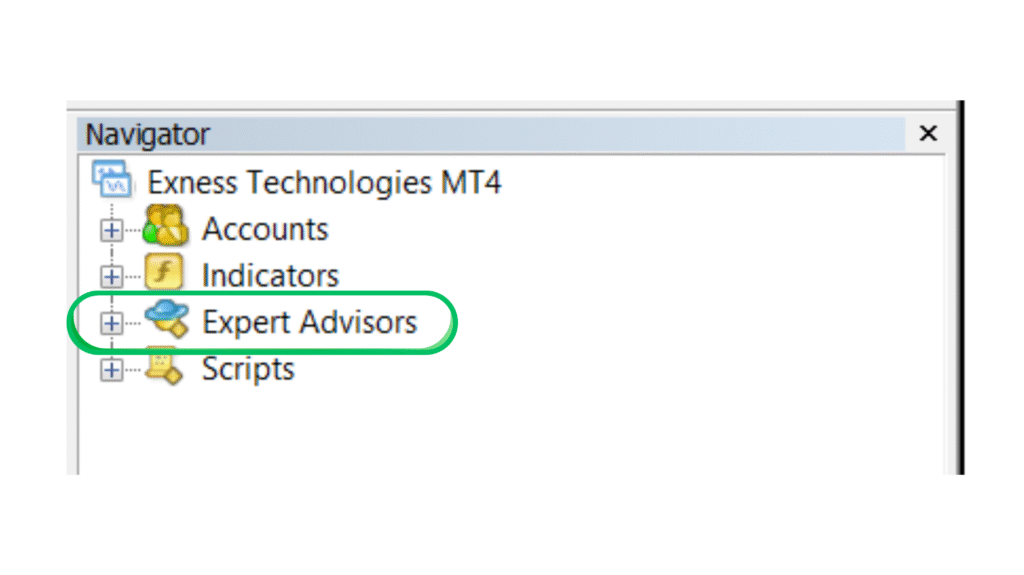
- Right-click on Expert Advisors.Under “Expert Advisors,” you’ll find your installed or copied Expert Advisors— in this case, GMGS PRO V2. This means the EA file (for example,
GMGS PRO V2.ex4) has been successfully placed in the Experts folder.
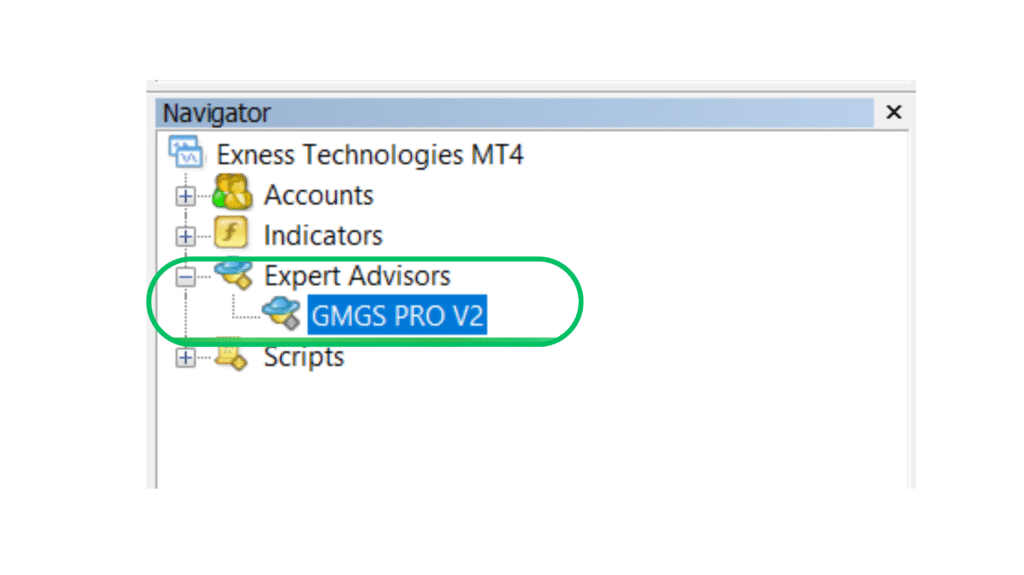
- From the dropdown menu, click Refresh, as shown in the image below.Right-click on Expert Advisors (or directly on the EA name, like “GMGS PRO V2”).A small menu will appear where you can choose
- Refresh → to reload the list if the EA was just added.
Once your indicator appears in the Navigator → Indicators list, you can attach it to a chart to start using it.Simply drag and drop the indicator onto your trading chart — or double-click on it to open and apply it automatically.
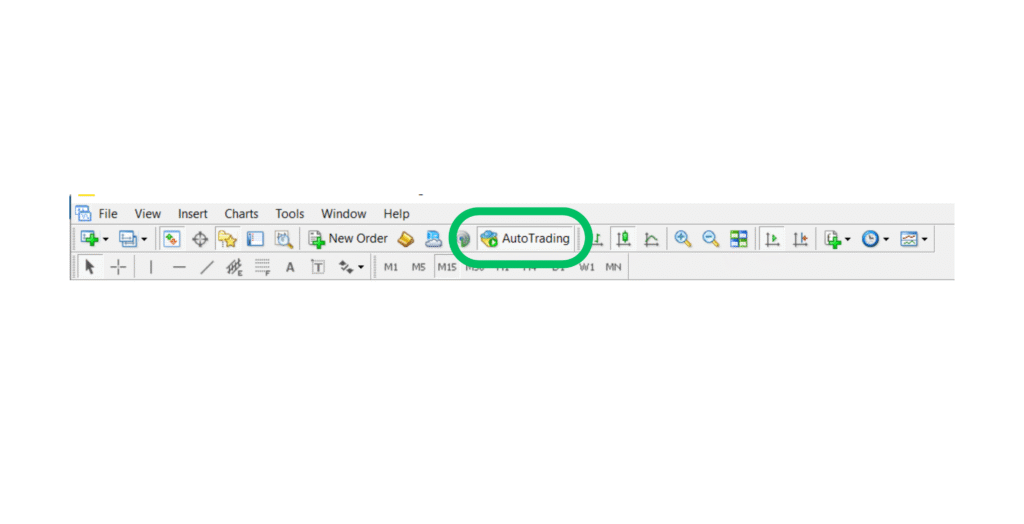
▶️ Step 7: How to Enable AutoTrading in MetaTrader 4
The AutoTrading button allows MetaTrader to automatically execute trades based on your EA’s strategy. When it’s green, AutoTrading is enabled — your EA can analyze, open, and manage trades on its own. If it’s red, automation is disabled, and the EA won’t trade. Keeping it green ensures continuous, hands-free, and emotion-free trading in real time.
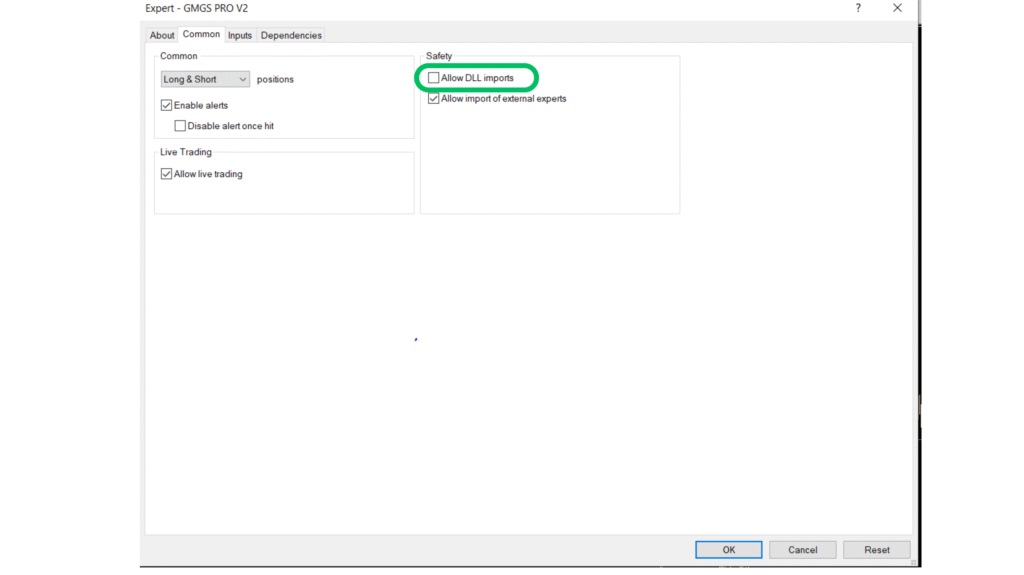
🔄 Allow Dll Inputs
If the Dependencies tab appears in your Expert Advisors settings, it means the EA uses external DLL files.
To ensure it runs correctly, you must enable “Allow DLL imports.”
Without it, the EA will not execute any trades or load properly.
Tabs labeled “About,” “Common,” “Inputs,” and “Dependencies.”
- The Inputs tab is currently selected, displaying all the adjustable parameters of the Expert Advisors.
- Each row lists an EA variable (on the left) and its current value or setting (on the right).
- Traders can modify these parameters to customize the EA’s behavior — such as lot size, risk percentage, take profit, stop loss, and trading times.
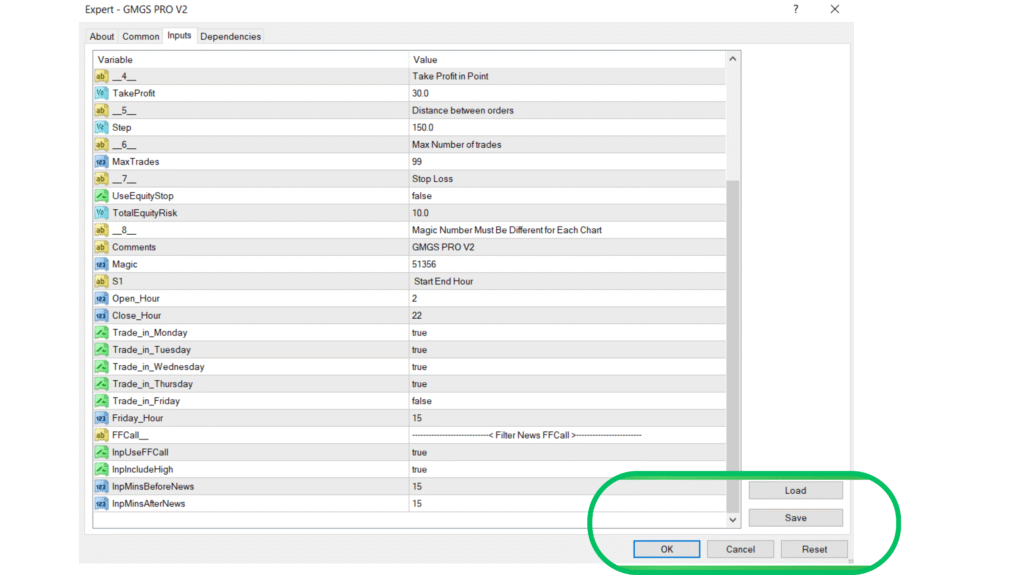
📂 Load
- The Load button lets you import previously saved settings (
.setfiles). - This saves time when switching between different strategies or currency pairs.
Example:
If you have different configurations for London and New York sessions, you can load each setup with one click.
💾 Save
- The Save button allows you to store your Expert Advisors settings as a preset file (with the extension
.set). This is useful when you’ve fine-tuned all your input parameters (like lot size, take profit, trading hours, etc.) and want to reuse them later. Once saved, you can apply the same configuration on another chart or even after restarting MT4.
Example:
If you optimize your EA settings for EUR/USD and save them as eurusd_setfile.set, you can quickly load them again later instead of entering values manually.
❌ Cancel
- The Cancel button closes the settings window without saving any new changes.
- It reverts to the last saved or previously applied configuration. Once the desired settings are configured, clicking “OK” applies them, while “Save” lets you store them as a preset (.set) file for future use.
✅ OK
- Clicking OK applies all the changes you made to the EA settings and closes the window.
- The EA will start running on the chart using the parameters you’ve set.
💾 How to Save a Set (.set) File in MT4
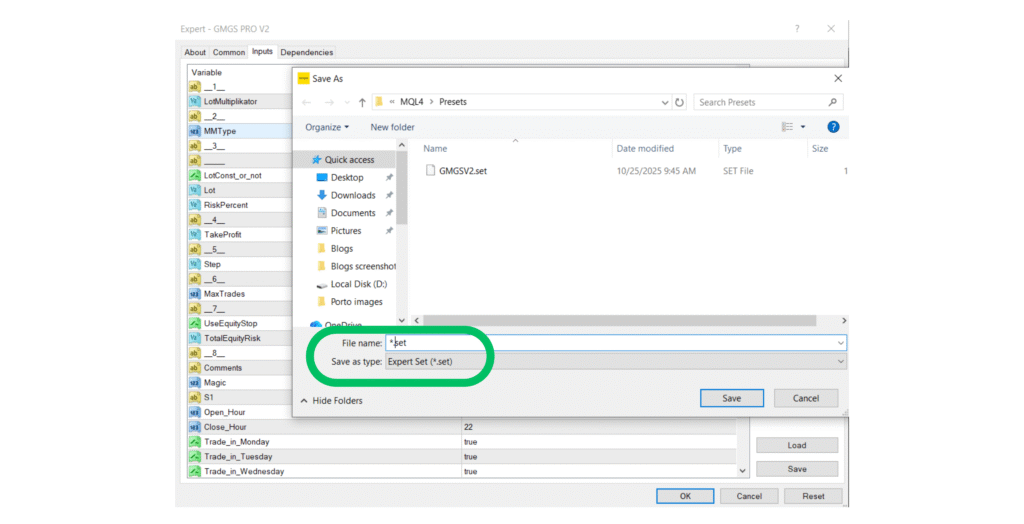
How to Save EA Settings as a Preset (.set) File
- Open EA Settings:
Attach your EA (like GMGS PRO V2) to a chart and open the Inputs tab to view all adjustable parameters (LotMultiplier, TakeProfit, StopLoss, etc.). - Adjust Parameters:
Modify the values according to your strategy — for example, change lot size, risk, or trading hours — and double-check everything. - Save the Preset:
Click Save at the bottom of the Inputs tab. In the dialog box, name your file (e.g., GMX5_V2_Test) and save it in:
MQL4 → Presets (for MT4) - Reuse Anytime:
Your settings are now saved as a.setfile and can be reloaded anytime using the Load button in the same Inputs tab.
✅ Step 8: The Smiley Face — Your EA’s Active Status Indicator
After you’ve enabled AutoTrading, look at the top-right corner of your chart — right beside your Expert Advisors name (for example, GMGS PRO V2).
If you see a 😊 smiley face, congratulations — your EA is active and trading!
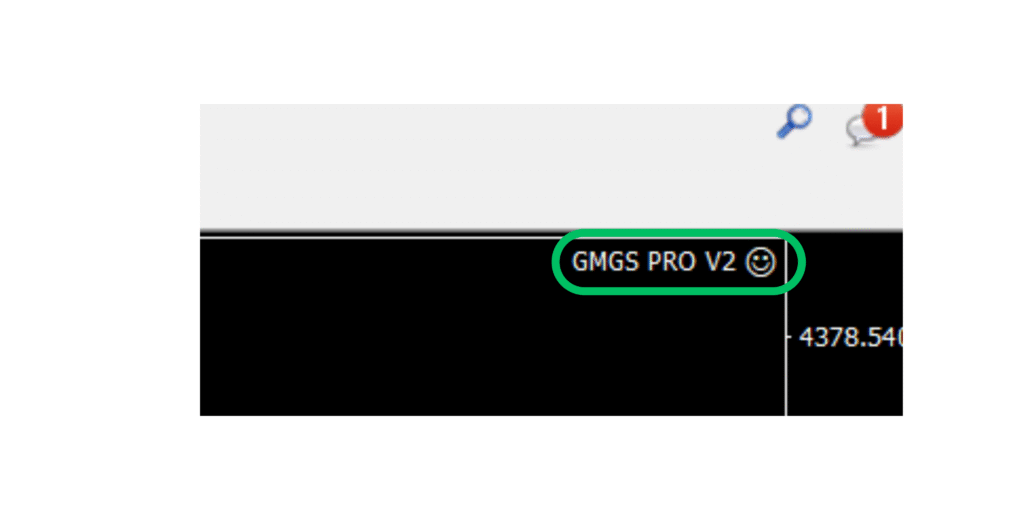
This small icon is MetaTrader’s way of telling you that your EA has:
- Been attached correctly to the chart
- AutoTrading is enabled
- All permissions are active
- The EA is fully functional and ready to execute trades
😟 If You See a Frown Face
Don’t panic — it just means the Expert Advisors isn’t active yet. Here’s what to check:
- Ensure the AutoTrading button at the top of your platform is green.
- Open your EA’s Common tab and verify that “Allow live trading” is checked.
- Confirm your trading account is connected and not in read-only mode.
🧾 Step 9: Verify EA Activity in the “Experts” or “Journal” Tab
Once your EA shows a 😊 smiley face and AutoTrading is turned on, it’s time to double-check that the system is actually running as expected.You can do this easily by looking at the Experts or Journal tab located at the bottom of your MetaTrader platform.
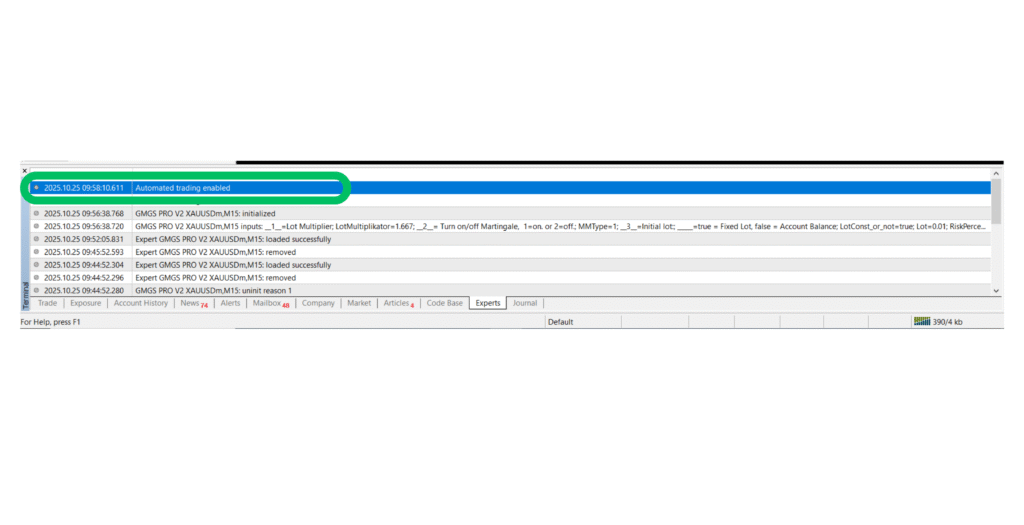
When your Expert Advisors is correctly installed and trading permissions are enabled, you’ll see a confirmation message like Below that, you might also see entries showing
- The EA being initialized (loaded successfully)
- Inputs and settings being applied
- Trade operations being executed or managed
✅ What These Messages Mean
- “Expert Advisors initialized” → Your EA has started running.
- “Automated trading enabled” → MetaTrader is allowing your EA to execute trades.
- “Order placed / closed successfully” → The EA has executed a trade as per its strategy.
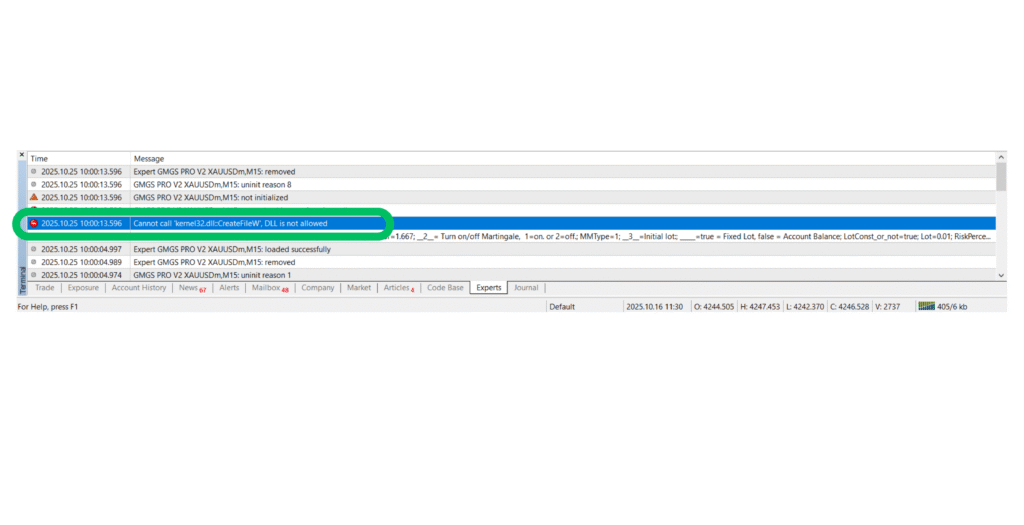
If you see these messages without any errors or warnings, congratulations — your Expert Advisors is live, functioning, and ready to trade automaticallyThis means your Expert Advisor (EA) tried to use a DLL (Dynamic Link Library) file function, but MetaTrader blocked it because DLL imports aren’t currently enabled.
Let’s fix it step by step 👇
🧰 What the Error Means
- The EA you’re using (GMGS PRO V2) includes code that calls a DLL function — in this case,
kernel32.dll. - MetaTrader blocks DLL calls by default for security reasons.
- To make the EA run properly, you must manually allow DLL imports in the settings.
✅ How to Fix the “DLL Is Not Allowed” Error
Step 1: Enable DLL Imports for the EA
- Go to your chart where the Expert Advisors is attached.
- Right-click on the chart → choose Expert Advisors → Properties.
- In the EA properties window, open the Common tab.
- ✅ Check the box that says “Allow DLL imports.” Further you can check in step no 7
- Click OK to save your changes.
Step 2: Refresh MetaTrader
Refresh your MetaTrader platform.
Then, reattach your EA and check whether the smiley face 😊 appears in the chart corner.
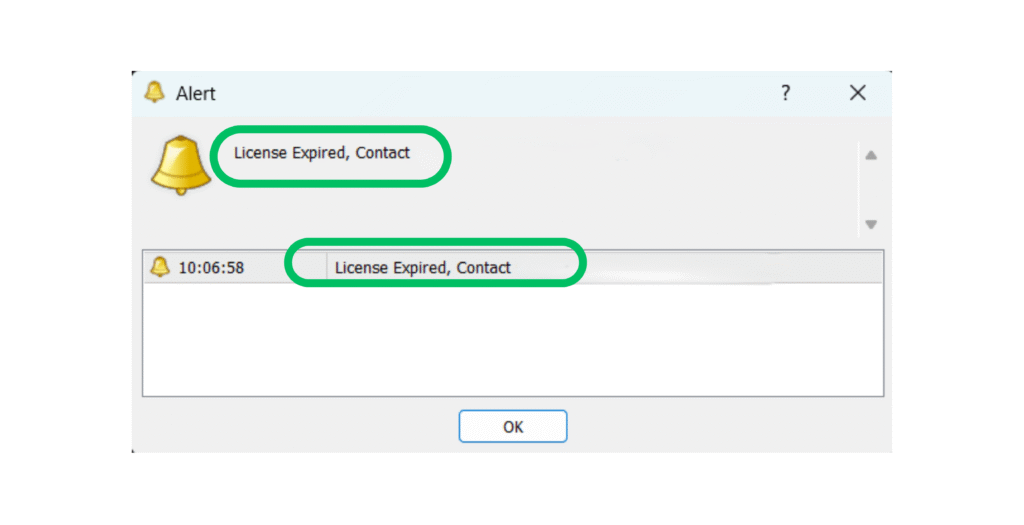
⚠️ What the “License Expired, Contact” Message Means
⚠️ What “License Expired” Means
This message indicates that your EA’s license or activation key has expired, so it can no longer run or execute trades. Most paid or protected Expert Advisors include a built-in license validation system that checks:
- ⏰ The expiration date for time-limited versions
- 🔐 The authorized account number or broker
- 🌐 A remote license server managed by the EA developer
If the EA detects that the license is invalid or expired, it automatically disables trading and displays the “License Expired” alert.
🧠 Why This Happens
The “License Expired” alert usually appears due to one of the following reasons:
- ⏰ Trial Period Ended: You were using a demo or time-limited version of the EA.
- 🔐 Account Not Authorized: The EA is licensed for a specific MT4 account or broker.
- 🌐 License Server Unreachable: Your internet connection or the developer’s server was temporarily down.
- ⚙️ Clock Mismatch: Your computer’s date or time is incorrect, causing license validation to fail.
✅ How to Fix the “License Expired” Issue
If your EA shows a “License Expired” message, try these quick fixes
- Contact the Developer:
Reach out to the EA creator or seller (via MQL5, website, or email) and request a license renewal or new activation key. - Check Account Authorization:
Some EAs are linked to specific MT4 accounts. If you changed brokers, ask support to update your account ID. - Ensure Internet Connection:
Make sure your internet is stable and your firewall isn’t blocking MetaTrader’s connection. - Reinstall or Update the EA:
Download the latest version from the official source — old versions may expire automatically. - Check System Date & Time:
Set your computer clock correctly; the wrong time can trigger false expiry alerts.
❓ FAQs About Installing Expert Advisors in MT4 & MT5
1. Can I install the same EA on multiple charts?
Yes! You can attach the same EA to multiple charts with different parameters for each pair or timeframe.
2. Why is my EA not trading?
Check that AutoTrading is enabled, live trading permission is granted, and your broker allows automated trading.
3. Do I need coding skills to install an EA?
Not at all. Installation requires only basic computer knowledge just follow the steps outlined above.
4. How can I test if my EA works correctly?
Run a backtest in Strategy Tester or observe its behavior in a demo account for several days.
5. Is it safe to use EAs on a live account?
Yes, provided you’ve tested it thoroughly and use proper risk management.
Sources
https://en.wikipedia.org/wiki/MetaTrader_4


No Comments